Security settings of Windows Server
Last updated on
This guide provides a quick overview of some of the more relevant Windows Server security settings.
Security Baseline
Section titled “Security Baseline”STACKIT maintains the integrity of the original Windows Server security posture. We do not modify the default security levels or harden the operating system beyond the standard configurations provided by Microsoft in their official installation media. The only modifications applied to our images are the inclusion of the latest cumulative security updates from the monthly Microsoft Patchday to ensure your environment is protected against known vulnerabilities from the start.
Password complexity
Section titled “Password complexity”The passwords must meet the following complexity requirements:
- Passwords may not contain the user’s
samAccountName(account name) value or entiredisplayName(Full Name value). Both checks aren’t case-sensitive. - The password contains characters from three of the following categories:
- Uppercase letters of European languages (A through Z, with diacritic marks, Greek and Cyrillic characters)
- Lowercase letters of European languages (a through z, sharp-s, with diacritic marks, Greek and Cyrillic characters)
- Base 10 digits (0 through 9)
- Non-alphanumeric characters (special characters): (
\~!@#$%^&*\_-+=``|\(){}[]:;"'<>,.?/) currency symbols such as the Euro or British Pound aren’t counted as special characters for this policy setting. - Any unicode character that’s categorized as an alphabetic character but isn’t uppercase or lowercase. This group includes Unicode characters from Asian languages.
Windows Defender Auto Update configuration
Section titled “Windows Defender Auto Update configuration”Windows Defender is used as the standard antivirus application in all provided versions of STACKIT Windows Servers.
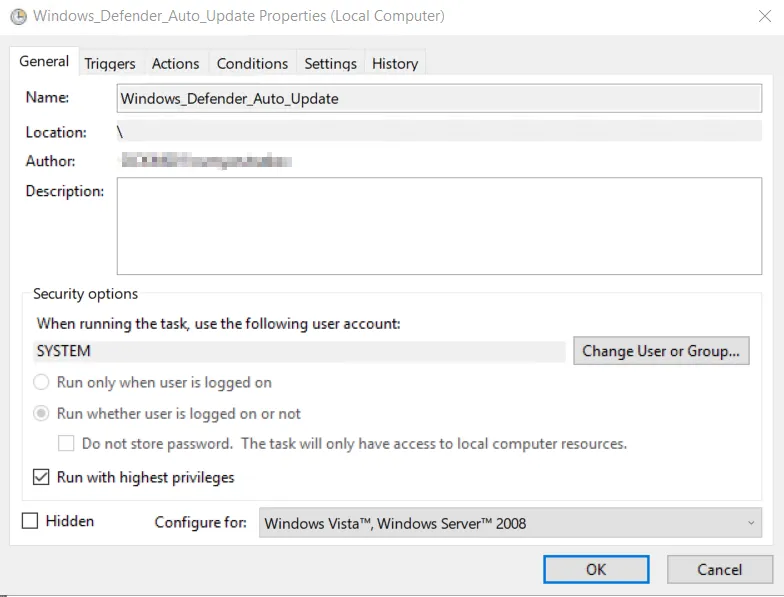
To keep the virus pattern definitions up to date, the task Windows_Defender_Auto_Update is created in the task scheduler at the initial configuration step of an ordered Windows Server:
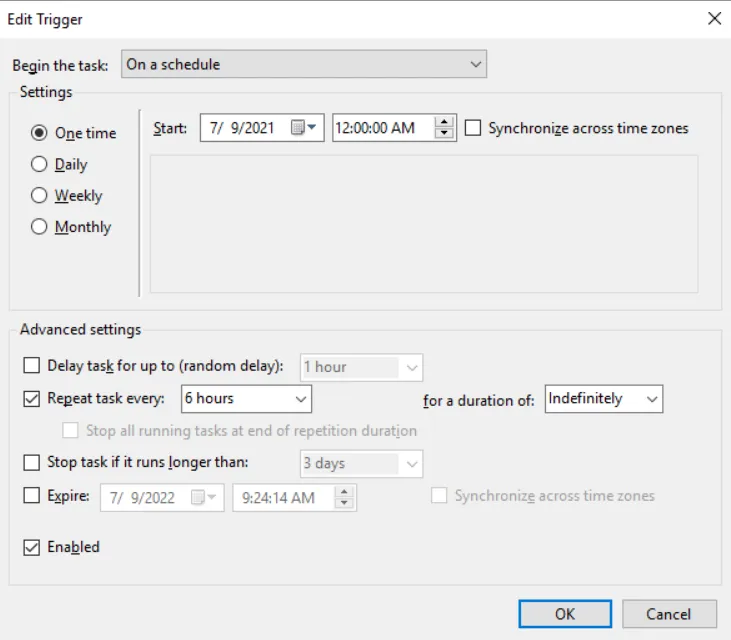
This scheduled task is already triggered by the system when the server is accessed the first time and repeats every 6 hours:
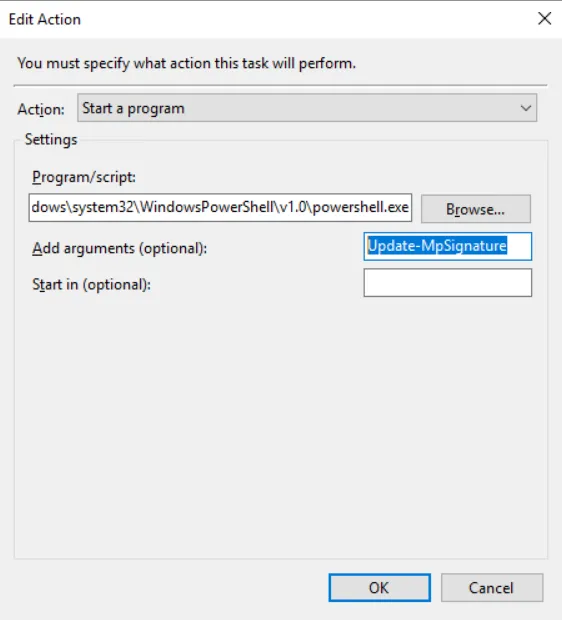
When the task gets run, the pattern will update itself via the native PowerShell cmdlet “Update-MpSignature” provided by Windows: